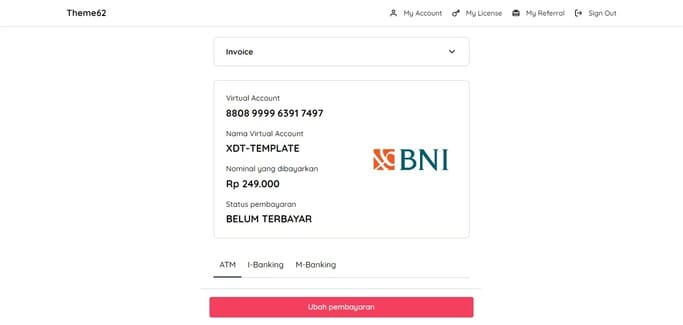
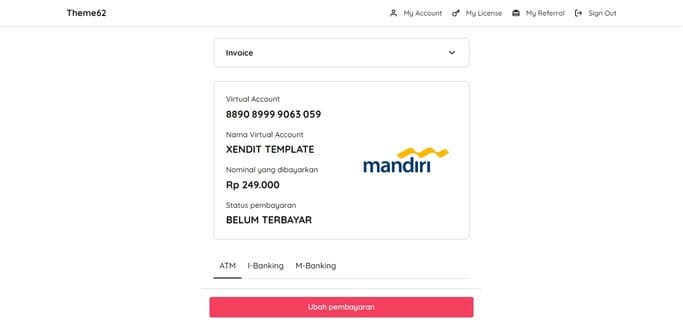
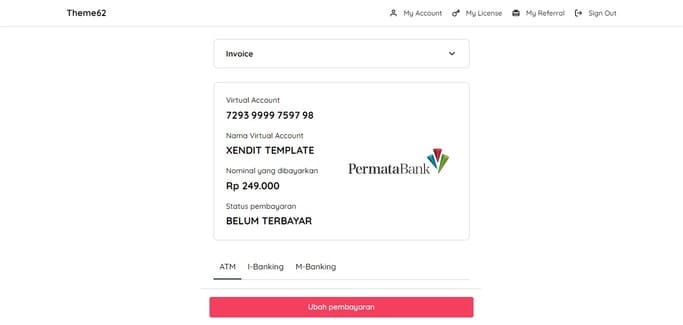
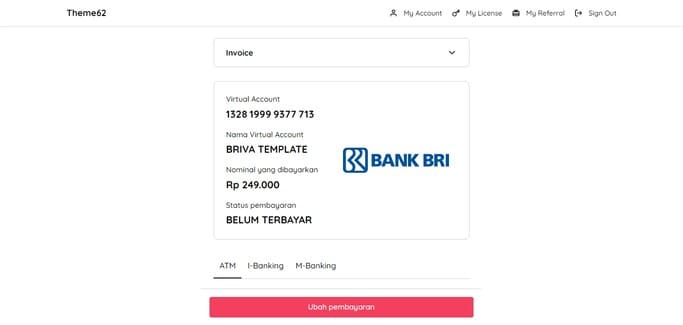
To purchase a template license, Theme62 has several payment methods that you can choose from as follows.
e-Wallet / QRIS :
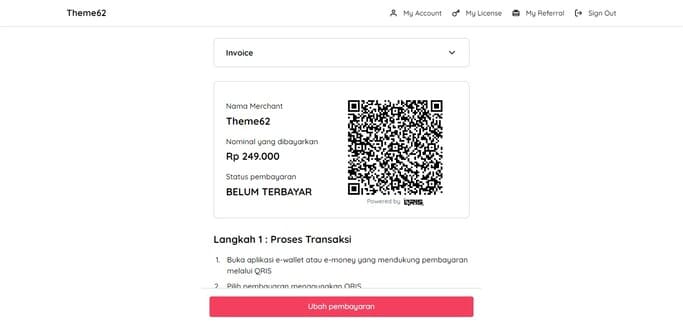
You can make payments through applications that support QRIS such as: LinkAja, ShopeePay, GoPay, DANA, OVO, Jago, BCA Mobile, BRImo, Jenius, and others.
Method
Admin fee
QRIS
Free
Virtual Account :
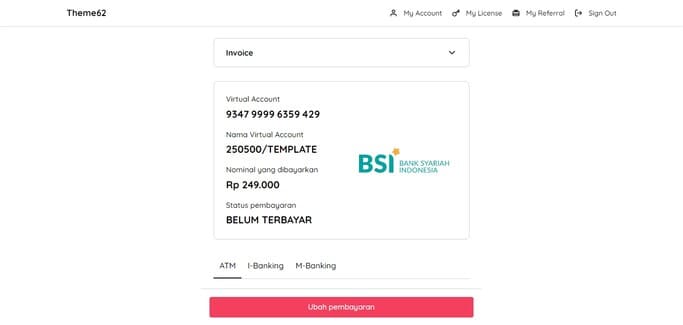
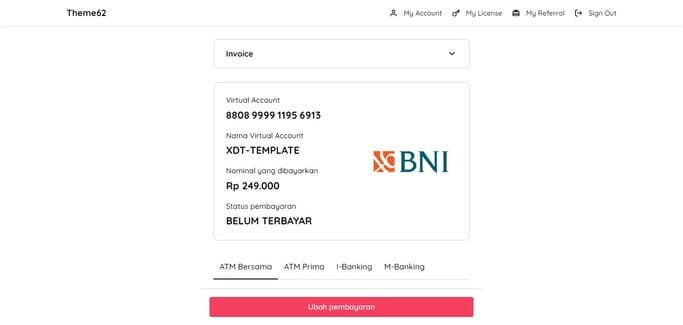
You can make payments to your Virtual Account via ATM, Mobile Banking or Internet Banking.
Method
Admin fee
BNI
Free
Mandiri
Free
Permata
Free
BRI
Free
BSI
Free
Minimarket :
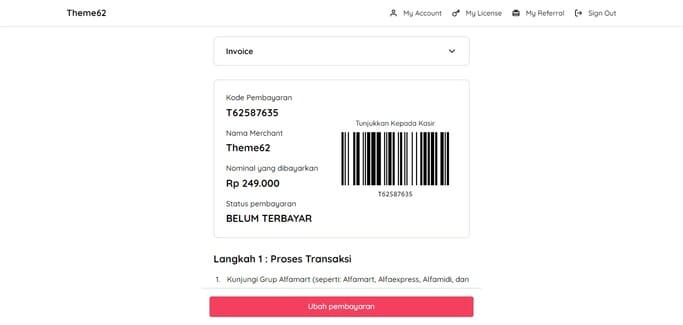
You can make payments through Alfamart Groups (such as: Alfamart, Alfaexpress, Alfamidi, and Dan+Dan) closest to your city.
Method
Admin fee
Alfamart
Free
Debit/Credit Card :
You can make payments via Debit/Credit Card.
Method
Admin fee
Debit/Credit Card
Varies with each transaction
PayPal :
You can make payments via PayPal.
Method
Admin fee
PayPal
Free
Cryptocurrency :
You can make payments via Cryptocurrency (Bitcoin, Ethereum, Tether, and more).
Method
Admin fee
Cryptocurrency
Varies with each transaction
Payment guide
ATM
I-Banking
M-Banking
Step 1: Process Transaction
Insert your ATM card
Select language
Enter your ATM PIN
Select "Other Menu"
Select "Transfer"
Select the type of account you want to use (example: "From Savings Account")
Select "Virtual Account Billing"
Enter your Virtual Account Number
The bill to be paid will appear on the confirmation screen
Confirm, if appropriate, continue transaction
Your transaction has been completed
Step 2: Transaction Successful
After your transaction is complete, refresh this page and the payment status will change to "PAID"
Select menu "Transfer to Other Bank" or "Interbank Online"
Enter the BNI Bank code (009) along with the Virtual Account number listed, and select "True" or "Continue"
Enter the amount of payment in the nominal Rupiah as stated. Next, select "True" or "Continue"
The screen will show confirmation of your Virtual Account payment details. Make sure all the details of the information in accordance with what has been submitted. Next, select "True" or "Continue"
After the payment process is successful, save the receipt or transaction receipt
Step 2: Transaction Successful
After your transaction is complete, refresh this page and the payment status will change to "PAID"
Select menu "Transfer to Other Bank" or "Interbank Online"
Enter BNI Bank code 009, select "True" or "Continue"
Enter the amount of payment in the nominal Rupiah as stated. Next, select "True" or "Continue"
Enter the Virtual Account Number listed, then select "True" or "Continue"
The screen will display your Virtual Account payment details. Make sure all the details of the information in accordance with what has been submitted. Next, select "True" or "Continue"
After the payment process is successful, save the receipt or transaction receipt
Step 2: Transaction Successful
After your transaction is complete, refresh this page and the payment status will change to "PAID"
Select menu "Transfer to Other Bank" or "Bank Transfer Account List"
Select "Bank BNI" or "BNI" as the preferred bank account of destination
Enter the Virtual Account Number listed, then select "True" or "Continue"
Make sure the screen displays the Virtual Account name as shown: XDT-TEMPLATE. Enter verification request with bank token if needed
After the Virtual Account bank account registration is complete, select "Other Bank Transfer"
Select a previously registered Virtual Account number: XDT-TEMPLATE
Enter the amount of payment in the nominal Rupiah as stated. Payments with nominal differences can cause transaction failure. Then select "True" or "Continue"
Re-confirm all transaction details. Verify with the bank token and PIN or Password to continue the transaction, if needed
After the payment process is complete and successful, save the proof of payment or take a screenshot of your phone screen
Step 2: Transaction Successful
After your transaction is complete, refresh this page and the payment status will change to "PAID"
Select menu "Transfer to Other Bank" or "Bank Transfer Account List"
Select "Bank BNI" or "BNI" as the preferred bank account of destination
Select "Virtual Account Billing" menu, then select debit account
Enter the Virtual Account Number listed, then select "True" or "Continue"
Make sure the screen displays the Virtual Account name as shown: XDT-TEMPLATE
After the Virtual Account bank account registration is complete, select "Other Bank Transfer"
Select a previously registered Virtual Account number: XDT-TEMPLATE
Enter the amount of payment in the nominal Rupiah as stated. Payments with nominal differences can cause transaction failure. Then select "True" or "Continue"
Re-confirm all transaction details. Verify with OTP or SMS and PIN or Password to continue the transaction, if needed
After the payment process is complete and successful, save the proof of payment or take a screenshot of your phone screen
Step 2: Transaction Successful
After your transaction is complete, refresh this page and the payment status will change to "PAID"